
Choose and save your preferences
Open Users → Notifications, choose the updates you want, then select Update to save.
The options you see depend on your role and access. These settings belong to the user whose Notifications page is open; they are not an account-wide set of preferences for everyone.
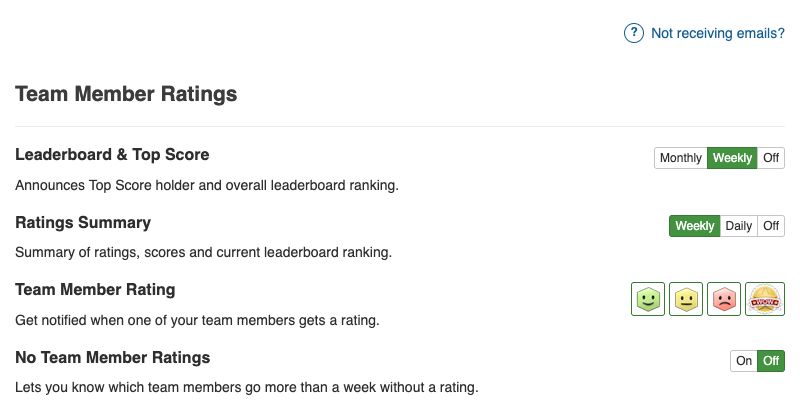
Example administrator controls. Team members see fewer options. Choose your settings, then select Update to save.
Personal and team rating alerts
Under My Ratings → Customer Rating, choose the rating types you want to hear about: Happy, Satisfied, Unhappy and WOW.
Administrators and team leaders may also see Team Member Rating controls for updates about other members. Those choices are separate from alerts about your own ratings. Check both groups if you want to reduce email volume.
Alerts are processed in scheduled batches. A saved rating does not guarantee an immediate email, and delivery filters or an unsubscribe can prevent a message. Use View ratings to check feedback directly.
Summaries and reminders
Where available, Leaderboard & Top Score offers Weekly, Monthly or Off, and Ratings Summary offers Daily, Weekly or Off.
Read Email summaries and reminders before relying on these options. Ratings Summary is available to administrators and team leaders; scheduled Buzz summaries are not offered. No Recent Ratings and No Team Member Ratings reminders are not currently scheduled to be sent, even if enabled. Your saved preferences are retained.
Customer confirmations and product news
Customer Rating Confirmation, where shown, controls the receipt sent to a customer who rates you. It is different from the alert sent to you about their rating.
The switch currently appears for administrators and team leaders. See Customer feedback confirmation emails for delivery conditions; contact support if you need to change this preference and cannot see it.
Product Updates and News is a separate choice for Hively news. Turning it off does not turn off every other notification.
Turn off emails or investigate missing ones
Use the individual switches or Off choices to stop selected updates, then save with Update.
An all-email unsubscribe applies separately to your email address. Turning a notification back on does not undo that unsubscribe. Follow Missing Hively emails to check for a paused-email notice and re-subscribe if wanted. Re-subscribing does not resend missed messages.